Receive
Download files someone sent you
Open the link in any browser. You don’t need an account or an app.
- No account needed
- Phone or computer
- Preview first
Steps
- Open the TransferSize link from the email or message.
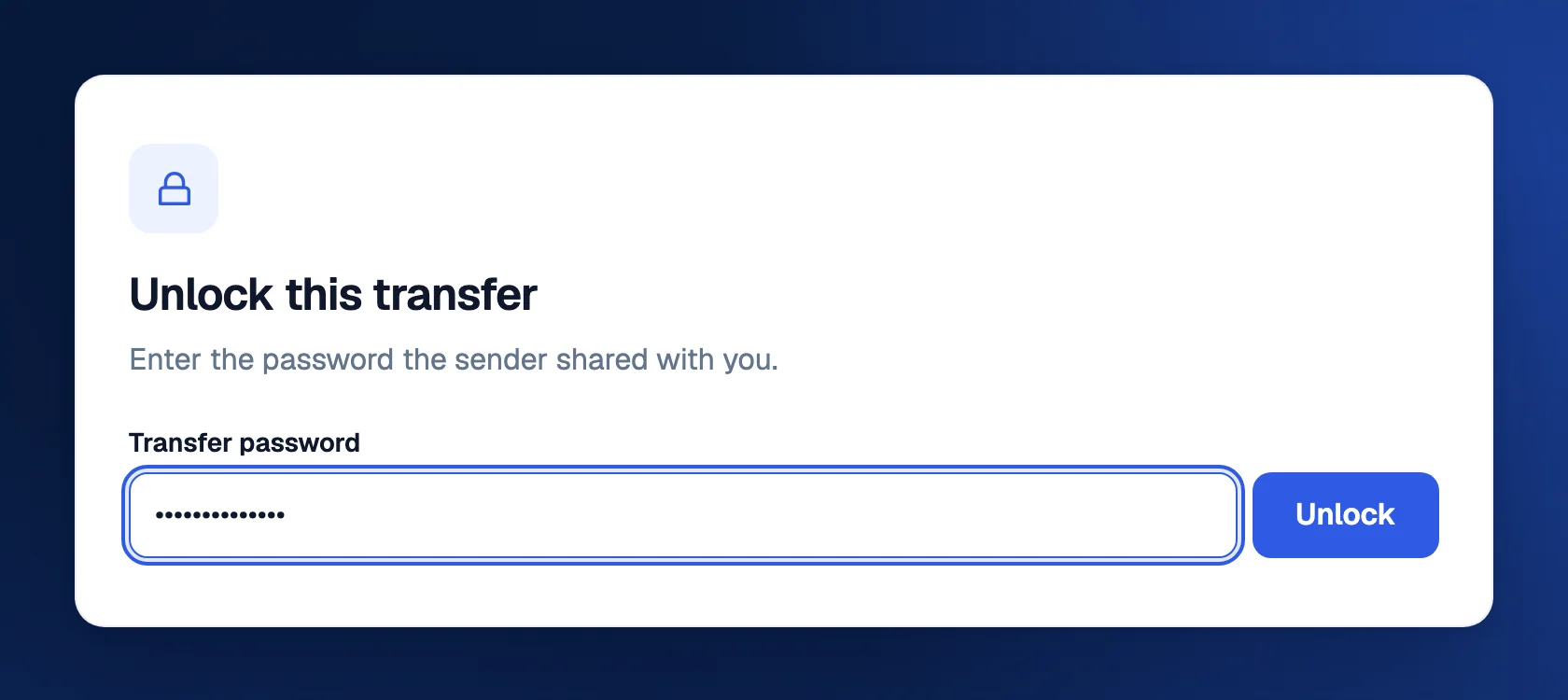
- If asked, enter the password and select Unlock.
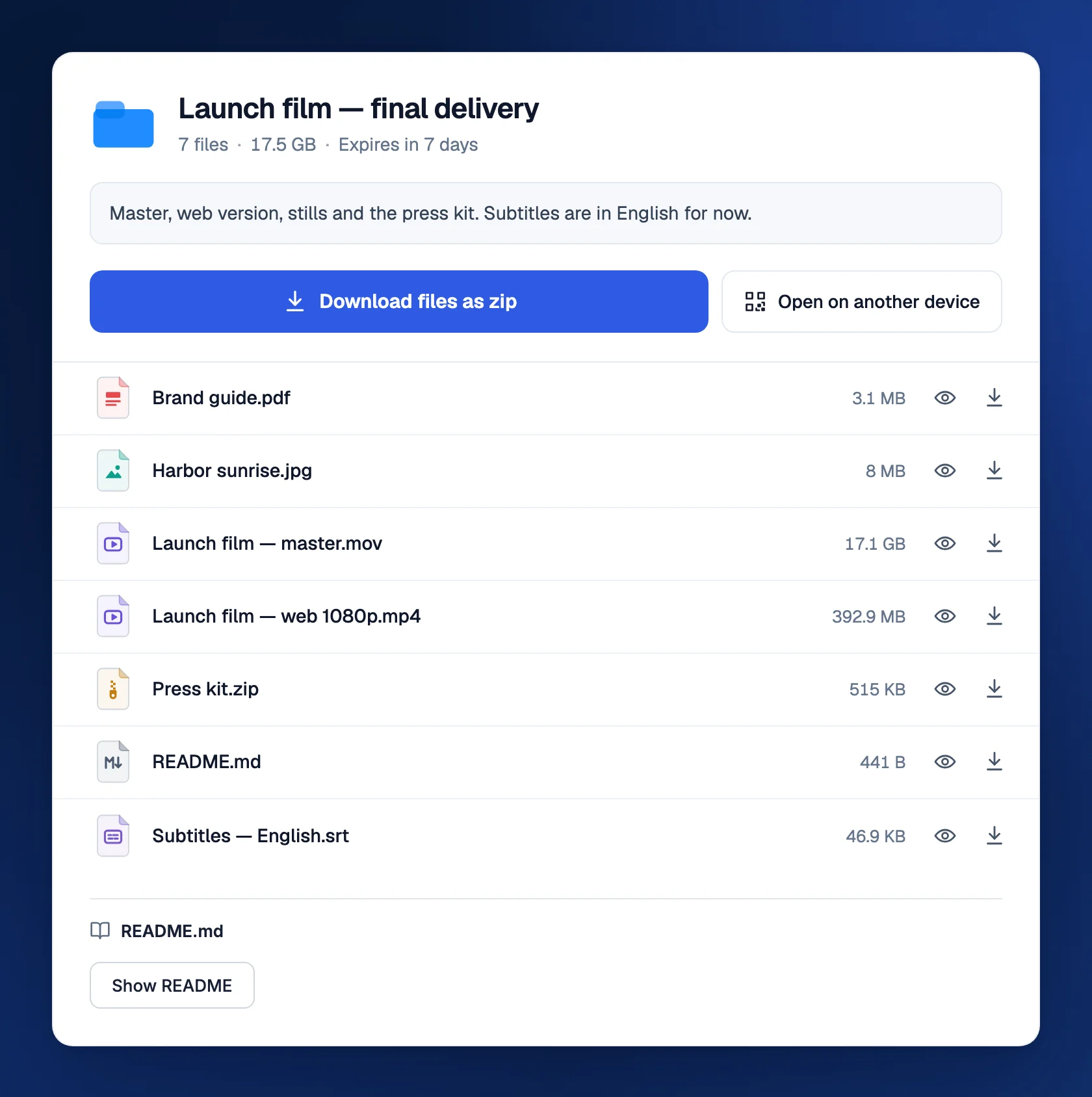
- Select Download files as zip to save everything at once, or Download file if it’s a single file.
- To save one file, select the arrow next to it. The eye previews it first.
Look before you download
Photos, video, audio, PDFs, Office files, code and the contents of zip files open in the browser. In a zip, you can open or download a single file without downloading the rest. What you can preview.
Troubleshooting
The link says it’s unavailable
It has expired, reached its download limit or been removed. Ask the sender for a new link.
I don’t have the password
Ask the sender. Passwords are never included in TransferSize emails.
I opened the link on the wrong device
Select Open on another device and scan the QR code with your phone or tablet.
Updated October 9, 2026