
Keep and organize
Organize My Files
Files in My Files stay in your account after share links expire.
- 15 GB free
- 1 TB on Premium
Steps
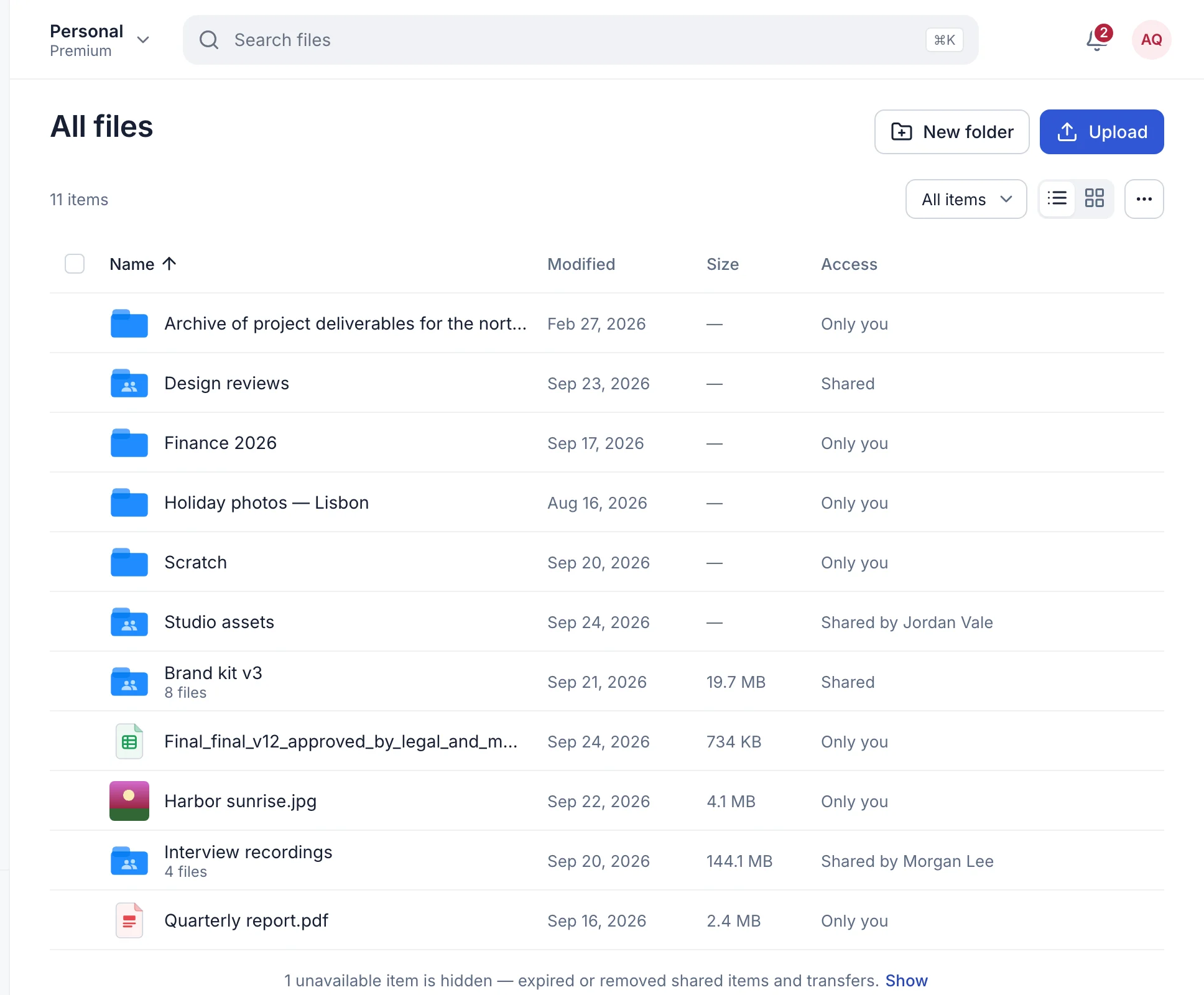
- In your workspace, open Files → All files.
- Select New folder to group files by project.
- Select Upload to add files to the folder you’re in.
- Choose Star on a file to find it later under Starred.
- Use the search bar to find any file by name.
Tidy up
- Rename in bulk
- Select several files and choose Rename. How it works.
- Remove empty folders
- In a folder’s ⋯ menu, choose Remove empty folders. They go to Trash.
- Hide clutter from others
- Choose Hide files from others… to keep files like drafts or
*.tmpout of what people you share with see.
Updated October 9, 2026