
Store and organize
My Files
Transfers deliver files and then tidy up. My Files is where files stay: organized, searchable and ready to share, for as long as you want them.
- 15 GB free
- 1 TB on Premium
- 1 TB shared on Family
What My Files is
TransferSize holds files in two ways. A transfer is a delivery: you upload, share a link, and the files are deleted when the link expires. My Files is storage: what you upload there stays in your account until you delete it.
Think of it as your own drive in the browser. Keep the finished projects, the brand kit you send every month, the scans you’ll need at tax time. Then share any of it in a couple of clicks, without uploading it again.
Folders
Group files by project, client or year.
Search
Find any file by name from the top bar.
Photos
Your images and videos in one timeline.
Trash
Deleted files wait before they’re gone for good.
Keep things organized
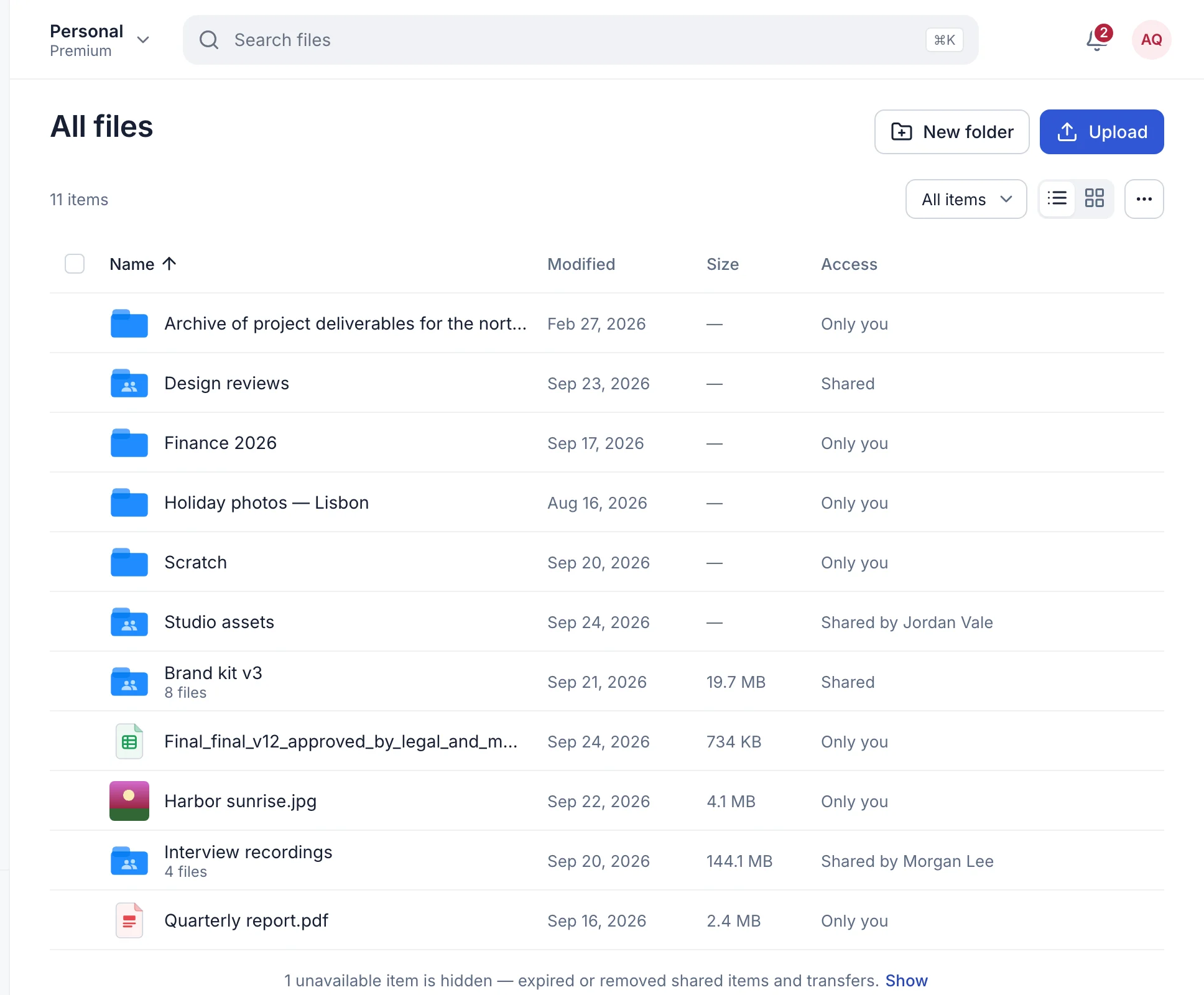
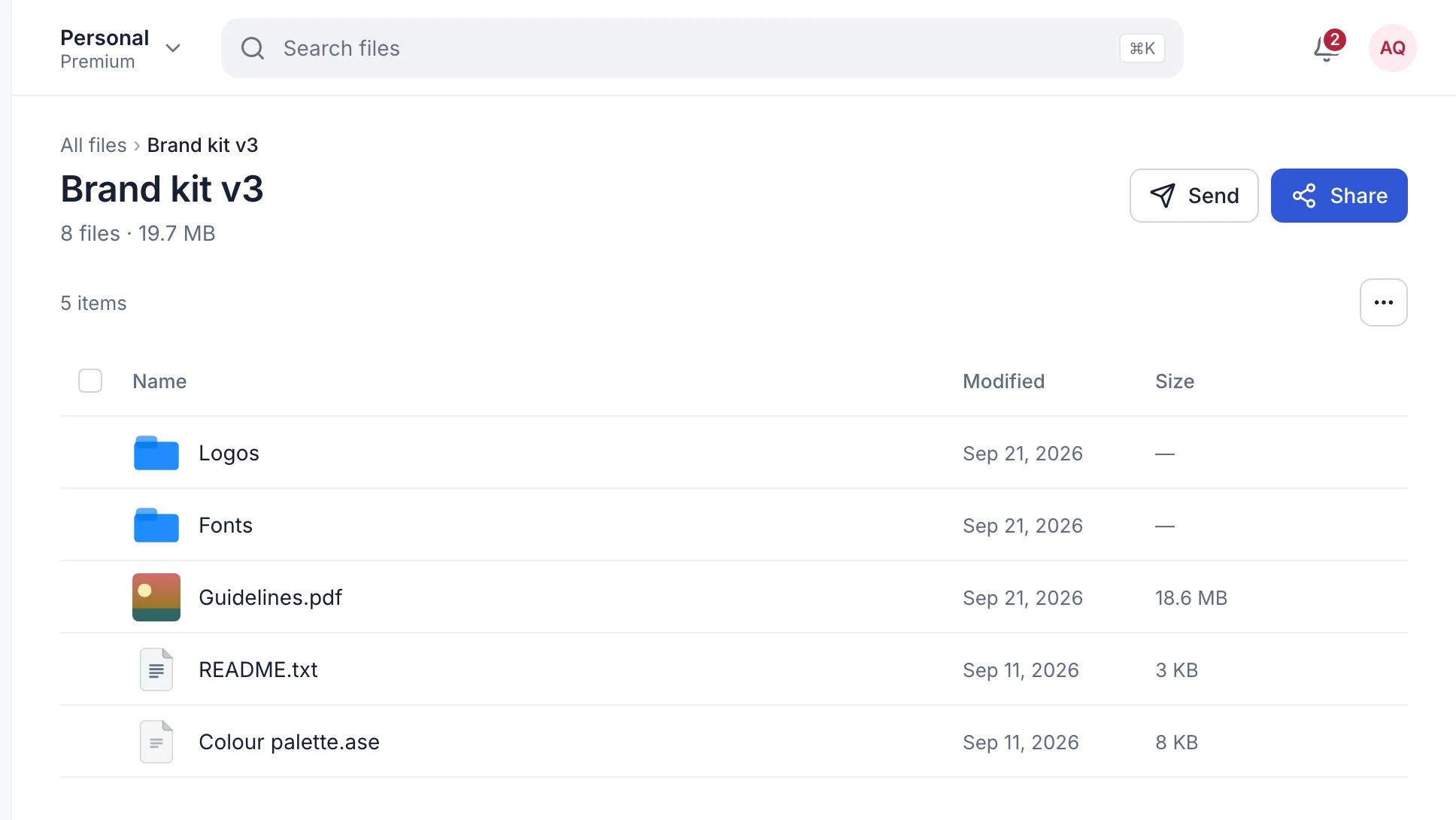
Open Files → All files in your workspace. Select Upload to add files to the folder you’re in, or drag them onto a folder. New folder starts a new one.
- Move and rename. Use the menu on any item to Rename it or Move to… another folder.
- Preview anything. Open a file to see it in the viewer: photos, video, PDFs, Office files, code and what’s inside a zip. What previews show.
- List or grid. Details in a list, or big thumbnails in a grid. Sort by name, date or size.
- Starred. Choose Add to Starred on the files you use most, and find them under Starred.
- Recent. The files you opened lately, newest first.
- Search. Type two or more letters in the search bar to find files by name, in every folder.
Tidy up in bulk
Some jobs are one file at a time. These aren’t.
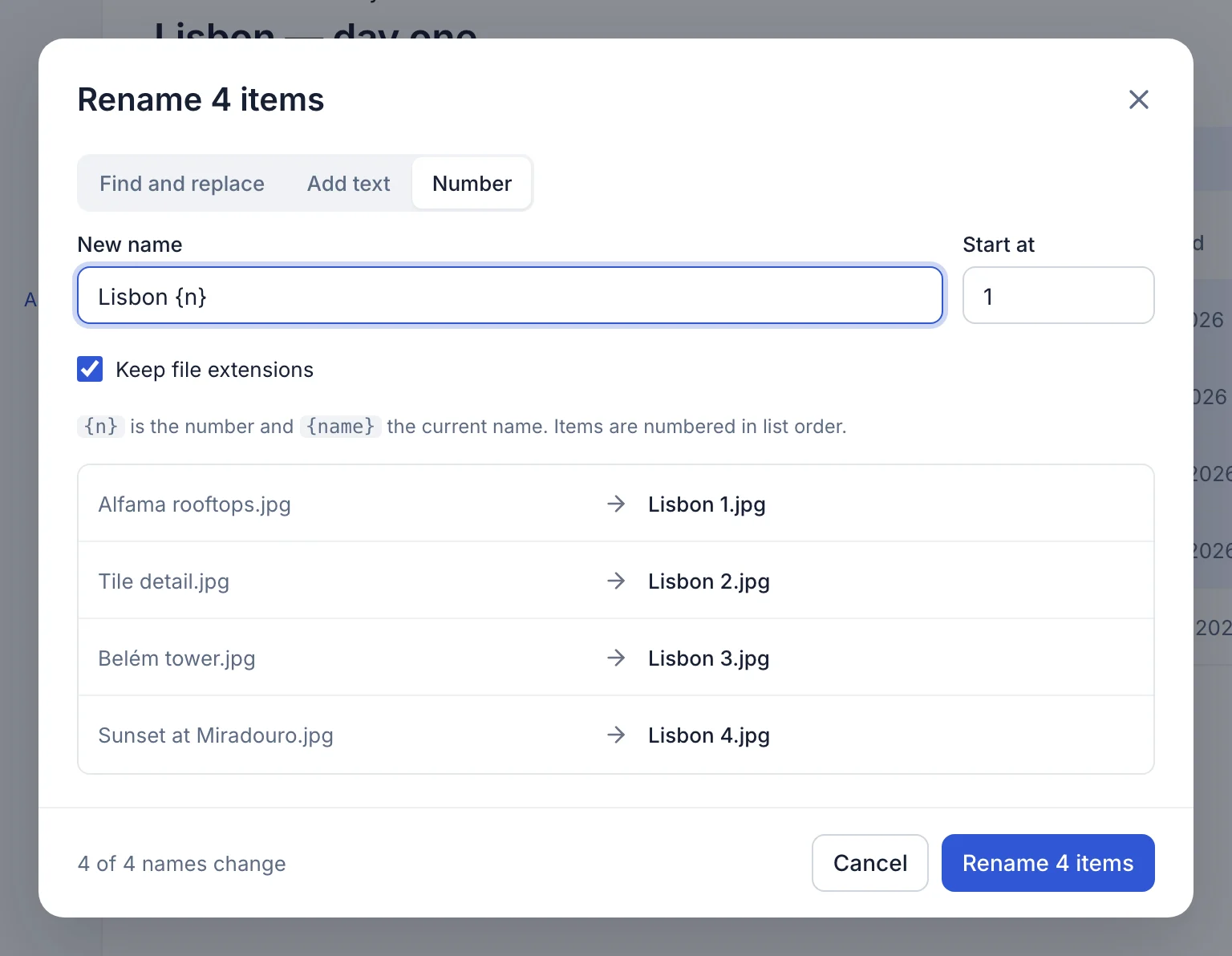
- Rename many files at once. Select the files, choose Rename, then find and replace text, add text before or after each name, or number them in order. A preview shows every new name before anything changes, and clashes are flagged. How to rename in bulk.
- Remove empty folders. From a folder’s ⋯ menu, Remove empty folders finds every folder inside that holds no files, including folders that only hold other empty folders, and moves them to Trash.
- Hide files from others. Choose Hide files from others… on a folder and list names or patterns like
*.tmp. People you share it with won’t see matching files; you still see everything. System files like .DS_Store and Thumbs.db are always hidden.
Share without uploading again
Files in My Files can be shared three ways. None of them move or copy the original.
- A file link. Open a file, select Share, then New link. Anyone with the link can download it for 1 or 7 days. Revoke it any time and the file stays put.
- With people. Under People, invite someone by their TransferSize email. They can view and download, and a shared folder stays live, so they see new files as you add them.
- As a transfer. Select files or folders and choose Send a transfer for a fresh link that lasts 1, 3 or 7 days.
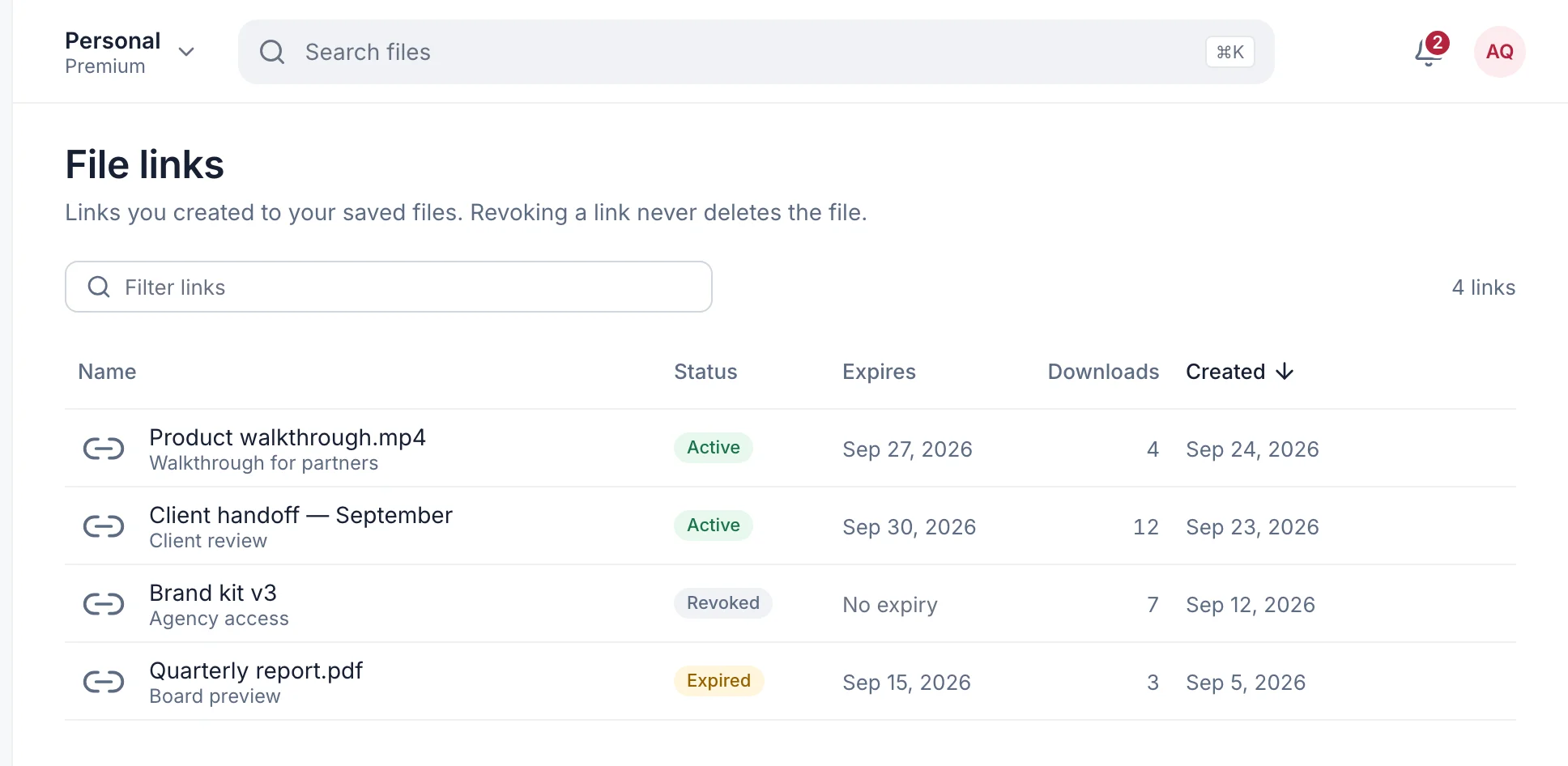
Every file link you’ve made is listed under Transfers → File links, with its status, expiry and download count.
Photos
Photos gathers every image and video in your account into one timeline. Group it by year, month or day, and filter to just photos, just videos or your starred ones. It’s ordered by when each file was uploaded, so a batch you add today shows up under today.
Trash
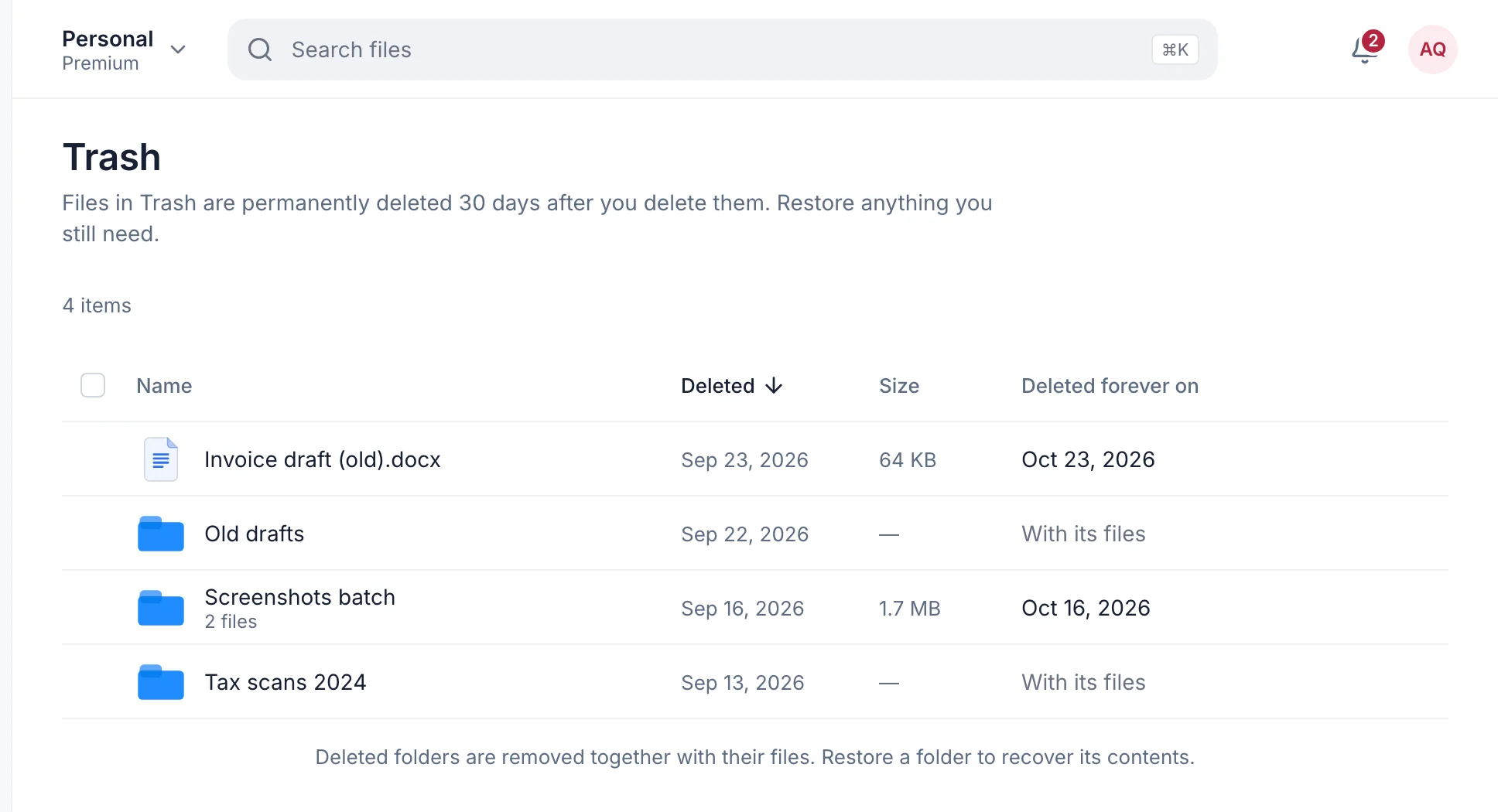
Deleting a file moves it to Trash. Each item shows a Deleted forever on date, and until then one click on Restore puts it back. Restore a folder and everything inside comes back with it.
Free accounts get 7 days to change their mind. Premium and Family get 30 days.
What it doesn’t do
- Public links to whole folders. Folders are shared with people by email. To send a folder to anyone, use Send a transfer.
- Long-lived file links. Links from My Files last 1 or 7 days. The files themselves stay as long as you keep them.
- Sort photos by the date they were taken. Photos uses the upload date.
- Sync a folder on your computer. Upload in the browser, or browse and download from your computer with WebDAV.
Storage by plan
Need more room? Premium and Family can add 1 TB for $5 a month, as many times as you like.
| Limit | FreeFree | Premium$9.99/month | Family$29.99/month |
|---|---|---|---|
| Storage | 15 GB | 1 TB | 1 TB shared |
| Deleted files kept for | 7 days | 30 days | 30 days |
Questions
Do files in My Files expire?
No. They stay until you delete them. Only links expire.
Can I upload a whole folder?
Yes. Choose Add folder or drag it in. Subfolders are kept.
Can I rename lots of files at once?
Yes. Select them and choose Rename to find and replace, add text or number them, with a preview first. See how.
Can an AI assistant find my files?
Yes. Connect Claude, ChatGPT or another assistant and it can search, read and link your files, without being able to change them. AI assistants.
Can I open My Files from Finder or File Explorer?
Yes, on Premium and Family, through read-only WebDAV.
Updated October 9, 2026