Skip to content
TransferSize

Guide

Continue an interrupted upload

If your connection drops, keep the tab open. TransferSize can retry the part that failed.

5 steps · No recipient account required · Updated 2026-08-25

Where to startChoose files → Continue → Create a link or Send by email
Steps

Steps to continue an interrupted upload

  1. 01

    Do not refresh

    Leave the upload page open and do not start a second copy.

  2. 02

    Reconnect

    Restore a steady connection and keep the device awake.

  3. 03

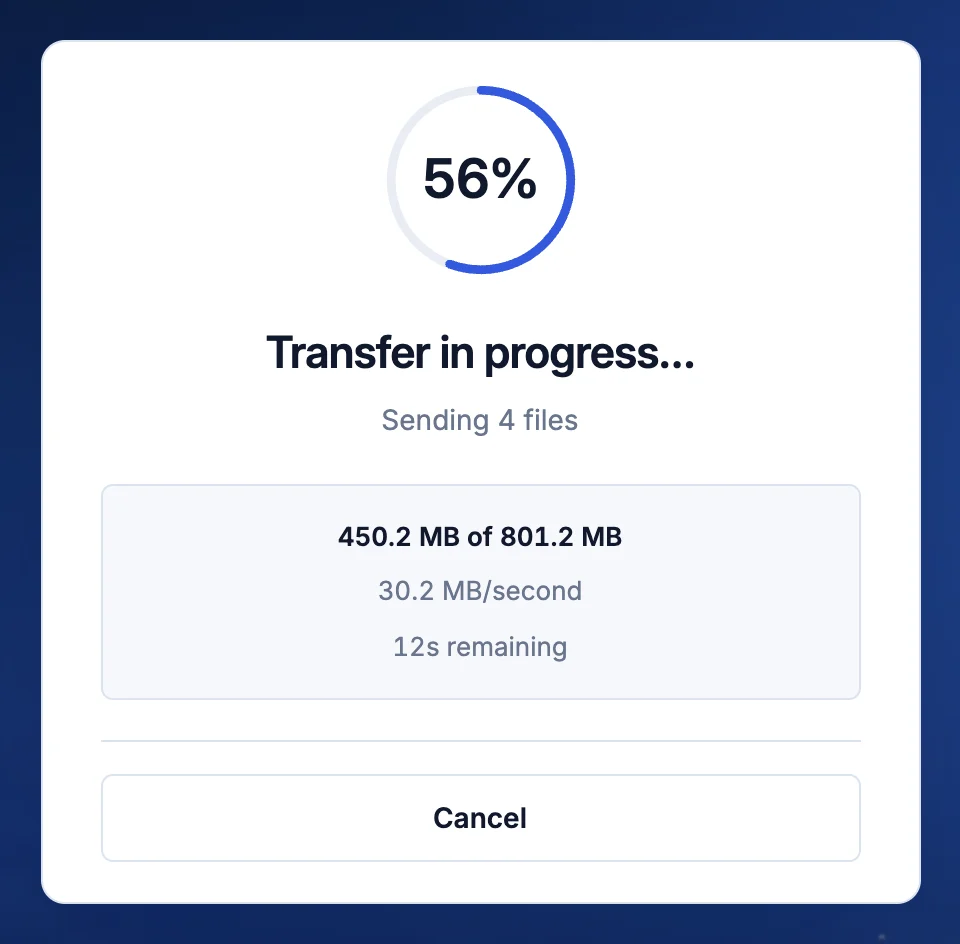
    Read the message under the progress bar

    TransferSize will pause or retry the part that failed while keeping confirmed progress.

  4. 04

    Use Retry if it appears

    Wait until the connection is stable, then use the button shown on the page.

  5. 05

    Wait for Transfer ready

    The upload is finished only when the link and Copy link button appear.

What the recipient sees

The recipient opens the transfer link in a browser, enters the password if one was set, previews supported files when enabled, and downloads without creating an account.

Good to know

A few things that matter

A paused bar is not always stuck

The browser may be waiting for the network, a retry, or the final check.

When to start again

Start a new upload if the tab was closed, the session expired, or the page says it cannot recover.

Make the next try easier

Stop the device from sleeping and upload from a local drive on a steady network.

Questions

Questions people ask

Can it continue after I close the browser?

Do not rely on that. Keep the tab open.

Does one failed part restart the whole file?

Normally no. The failed part can be retried on its own.

Ready?

Choose your files and follow the steps above.

Choose files